The editor has quite a few tools. On your first visit, leave roofs, stairs and plugins for later. Give yourself a smaller task: see whether the window corner could become a comfortable reading spot.
We'll use this oak living room to explain the controls. The screenshots show the current site in English, with view buttons labelled 2D, 3D and Split.
Get a copy you can change
Open the plan detail and choose “Copy plan and start my renovation,” or open an editable copy directly. This creates your own draft without changing the public scene.
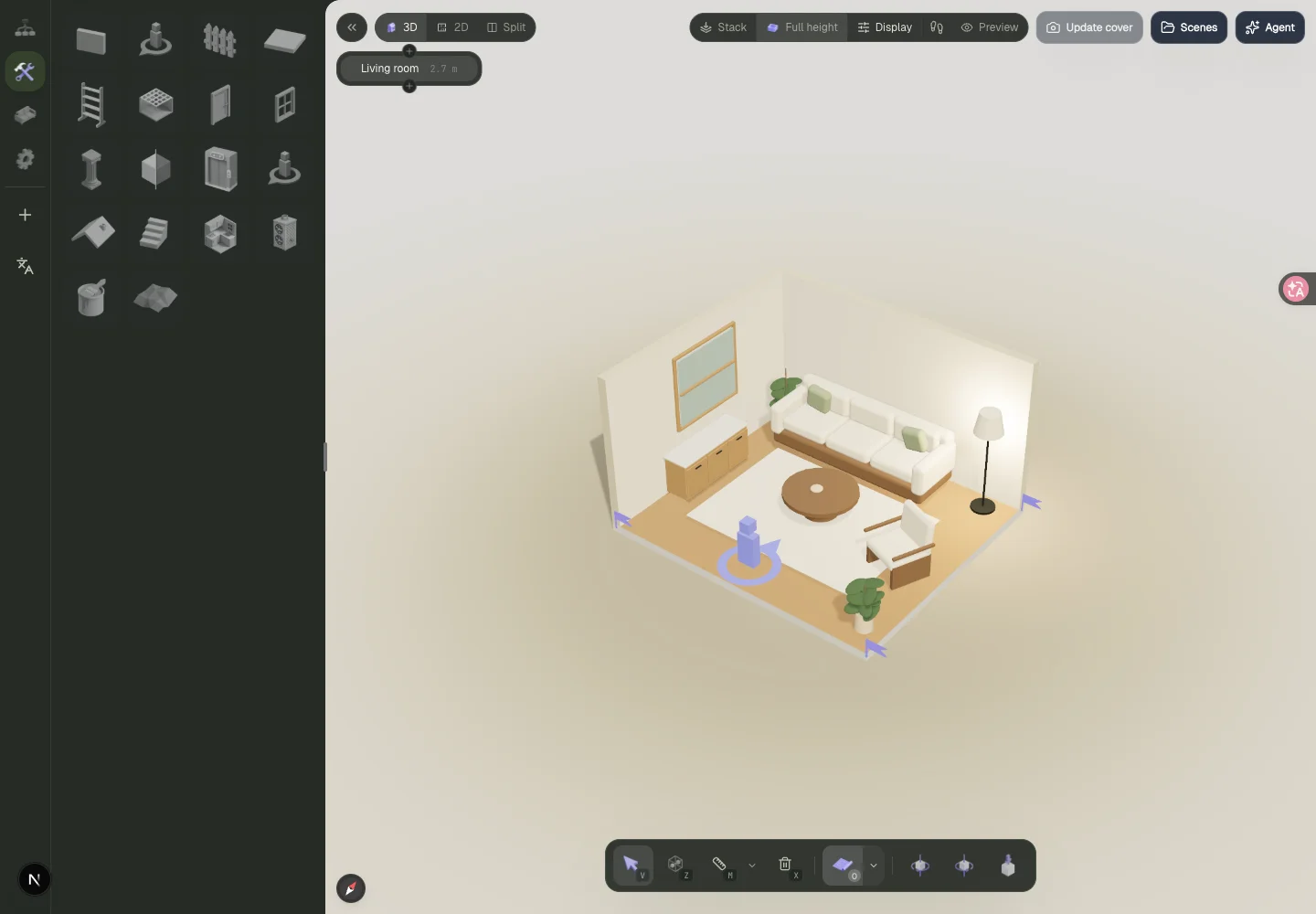
Take a moment to see what is already there: a sofa, coffee table, reading lamp and sideboard. Rotate the view and zoom with the mouse wheel. The on-screen camera hints explain the controls if you need them.
Find the spot in the floor plan
Choose 2D, or Split to keep the plan beside the 3D view. The plan is useful when your question is about occupied space or a route through the room.
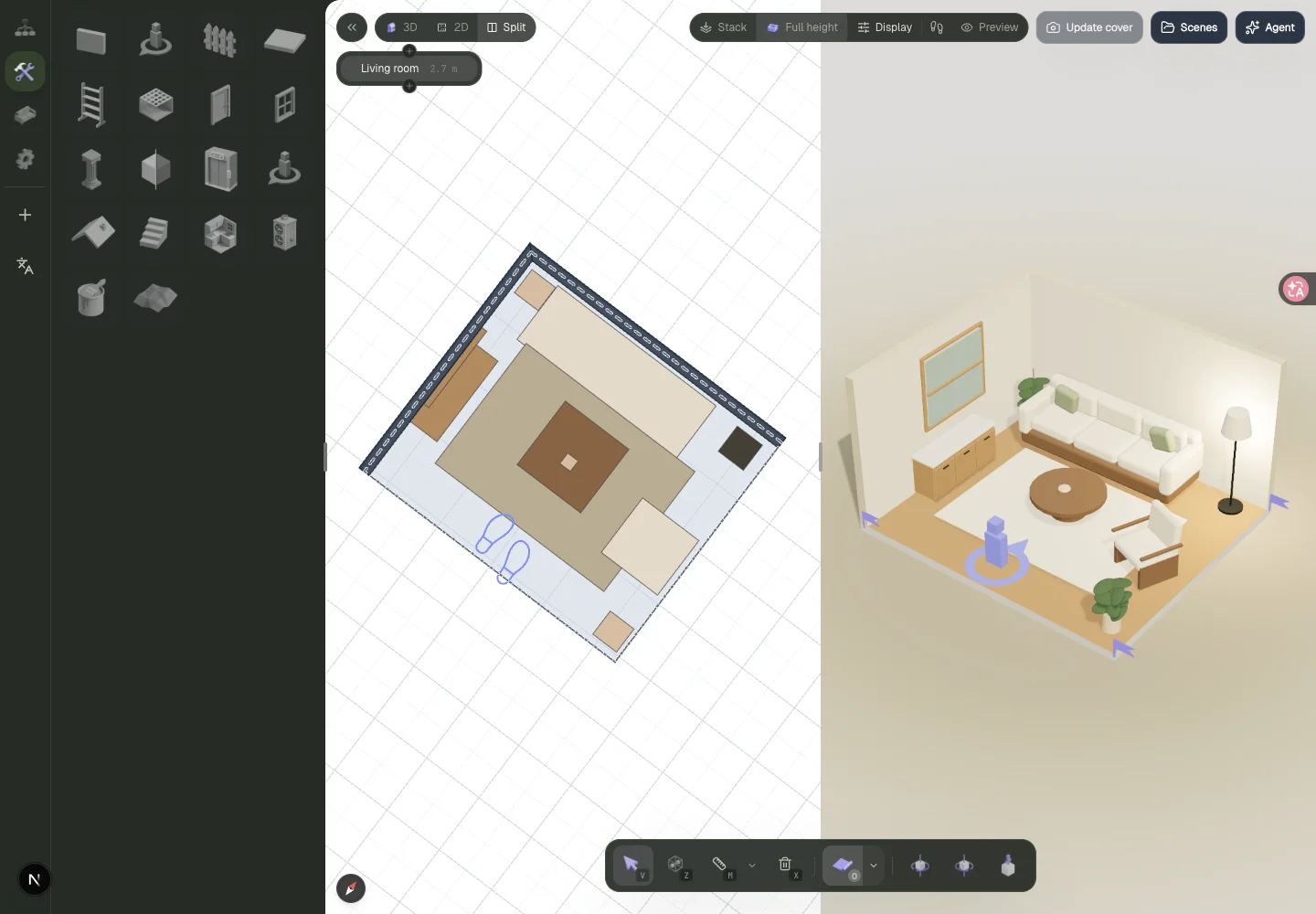
Switch to the selection tool, select the furniture you want to adjust and use its movement controls. Start with the lamp or sideboard. If selecting is difficult, zoom in and check that you picked the item rather than a nearby wall.
To add furniture, open Items on the left. Place one piece and look again before adding more. It is easy to fill a small model with things you like and forget where you need to walk.
For your own home, record the room's dimensions and door and window positions before changing the structure. Template dimensions describe the template. Check model sizes too. Our furniture-fit notes explain what to look at.
See the room from the entrance
Return to the public plan detail and choose “Enter room” in the preview. On desktop, use W, A, S and D to move, the mouse to look around, and Esc to exit. The preview displays those hints.
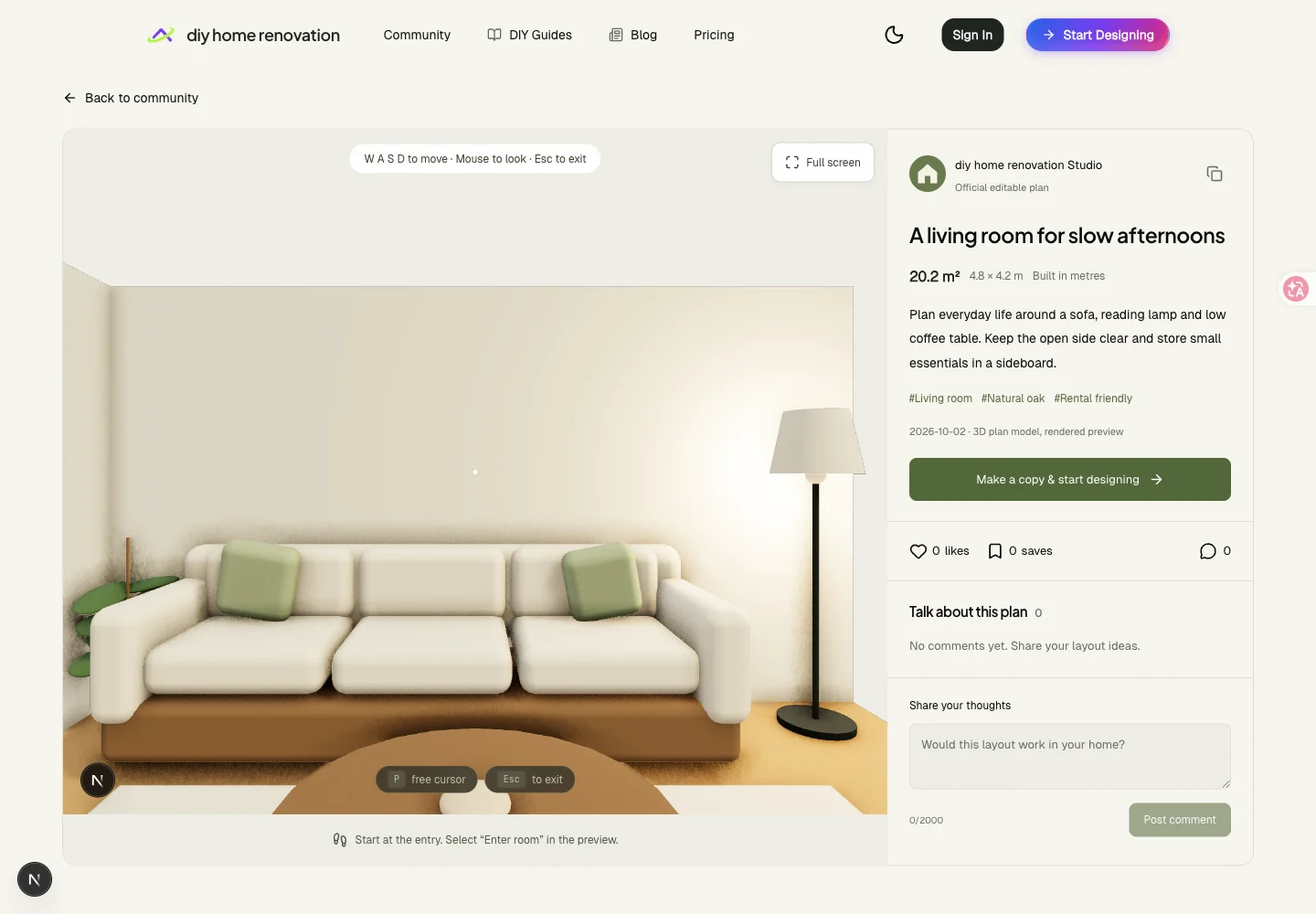
Try going from the entrance towards the sofa, then looking towards the reading corner. The public preview shows the original scene. Check changes to your own copy inside your editor.
Know where your draft lives
An unsigned draft stays in this browser; it does not automatically appear on another device. For a plan you intend to keep working on, sign in and confirm that you can find it in My scenes.
Once you are comfortable with that one corner, try another room from the community. A bedroom has different layout questions, but you can use the same approach: find the position in plan, then look at it in 3D.